Step by Step Guide to Setting Up SAP GUI for Worksoft Automation
SAP GUI is essential for organizations utilizing SAP software for enterprise resource planning and business operations. To seamlessly automate SAP GUI with Worksoft Certify, specific prerequisite configurations must be completed. This includes a one-time setup for both the SAP GUI Client and the SAP Application Server.

Avinash Kumar V
Automation Team Lead at Deployd with over 10 years of experience in test automation. Passionate about leveraging software automation to optimize costs and accelerate delivery timelines. Enthusiastic about building custom accelerators and driving efficiency across teams. Actively shares insights through technical blogs and enjoys experimenting with emerging testing tools and technologies.

Why Are These Pre-Requisites Essential?
For Worksoft Certify, Business Capture, or SAP Learn to interact with SAP GUI, the SAP Scripting interface must be enabled.
Worksoft relies on this interface to interact with SAP GUI objects. Without completing the prerequisite configuration steps outlined below, recording and playback of scripts in Certify or Capture will not be possible.
How To Verify If SAP Scripting Is Enabled?
The simplest way to verify whether scripting is enabled on both the client and server sides is by using Certify’s SAP Learn. Before launching SAP Learn, ensure you log in to the SAP system.
Once SAP Learn is open, access the diagnostic tools from the menu to check the scripting status:
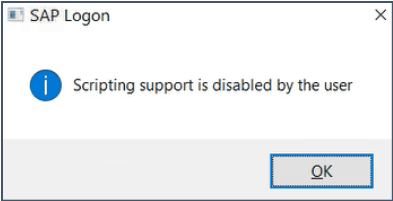
- If scripting is not enabled on your SAP client, you will see a popup notification. To resolve this, follow the steps in Section 1 to enable client-side scripting. Once completed, reopen SAP Learn - the popup should no longer appear.
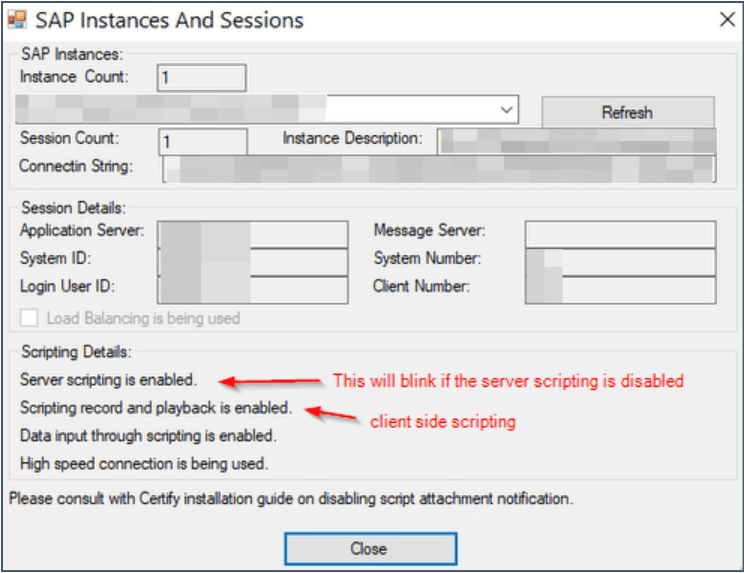
- If scripting is enabled on both the SAP Client and the Application Server, you should see the confirmation screen.
- If the server-side scripting is not enabled, you will see a blinking message that says it’s disabled. To resolve this, follow the steps in Section 2 to enable server-side scripting. Once completed, reopen SAP Learn, and you should see the screen below.
The sections below outline the configuration required to integrate Worksoft Certify with your SAP environment for the below,
- SAP GUI
- SAP Application Server
Important Note: Kindly get the necessary approval from your lead/manager before you carry out these tasks. Do not enable scripting in SAP production environments, as it will have a major business impact.
Section 1 - Configuring Your SAP GUI
The steps below must be replicated on each SAP GUI client,
Enable Client-Side Scripting
To enable script recording and playback in Worksoft Certify or Worksoft Business Capture, you must enable scripting in SAP GUI client.
Follow the steps below to enable client-side scripting:
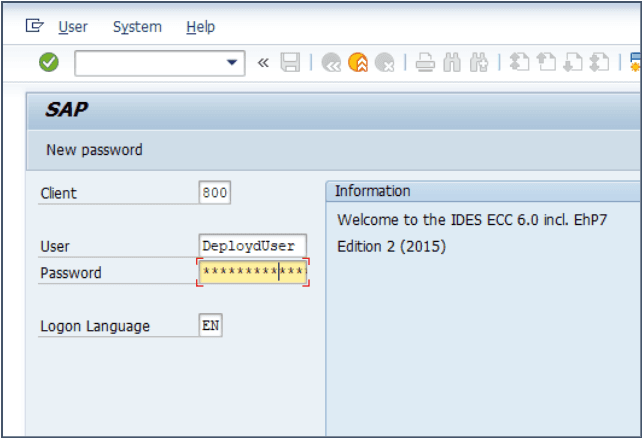
- Log in to SAP GUI with your username and password
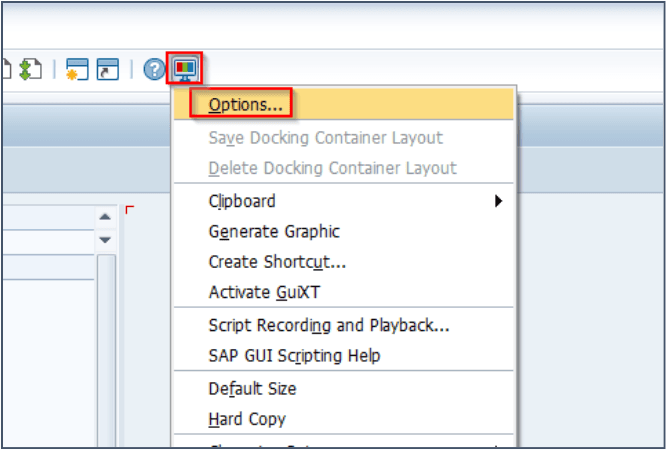
- From the SAP GUI toolbar, click "Customize Local Layout" button and the select "Options"
- Under the "Accessibility & Scripting" folder, select "Scripting" and configure the following settings
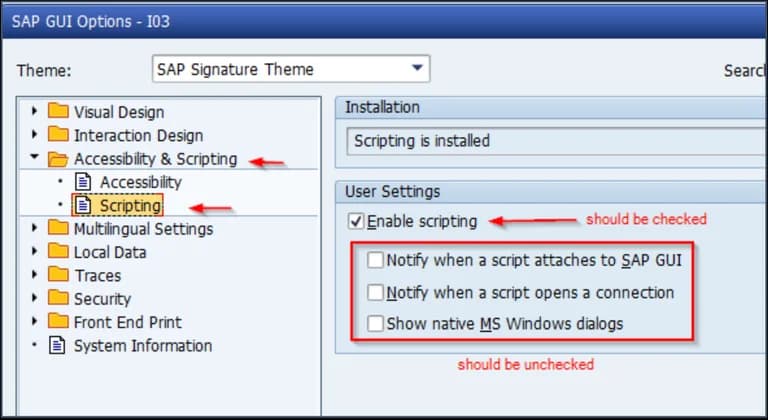
Enable scripting (Leave other checkboxes unchecked to prevent notifications every time an automation script is recorded or played back)
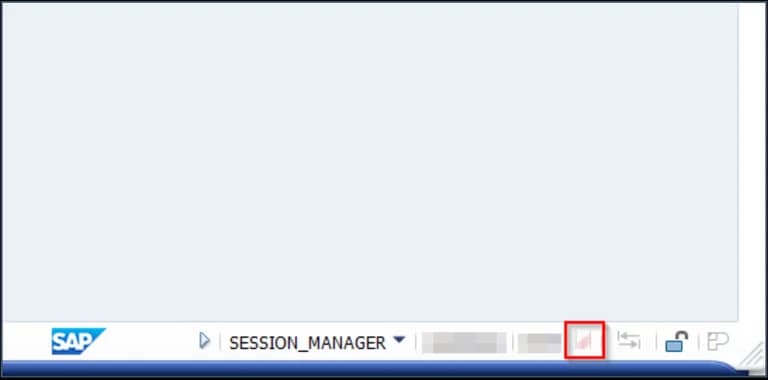
- Click "Apply" and "OK" button and you should see the candy cane symbol in your SAP GUI status bar as shown below, indicating that client-side scripting is enabled
Configure Modal Properties
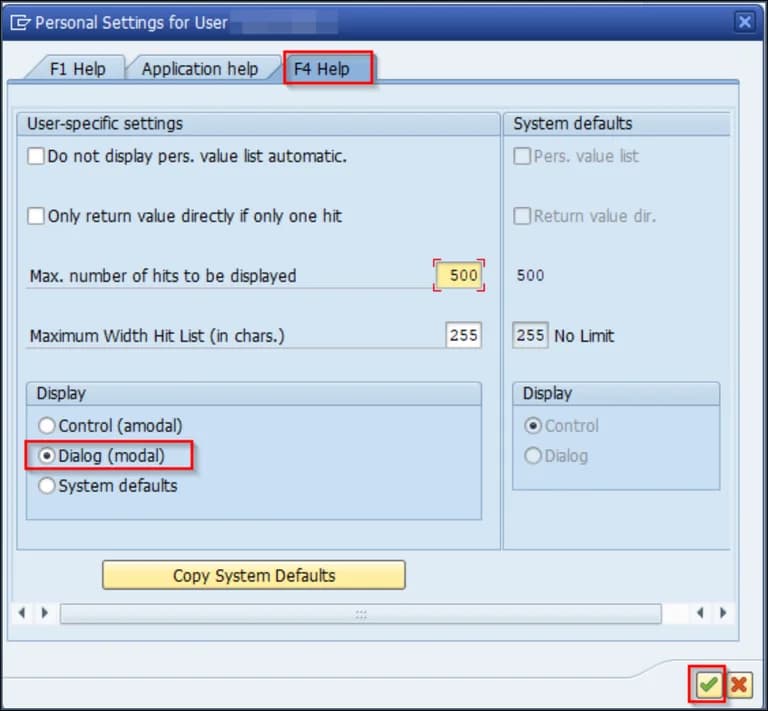
SAP scripting only supports Dialog (modal) display options for automation. This must be enabled for both F1 Help and F4 Help modal windows.
Steps to configure modal properties:
- From the SAP GUI Easy Access screen, under the "Help" menu, click "Settings"
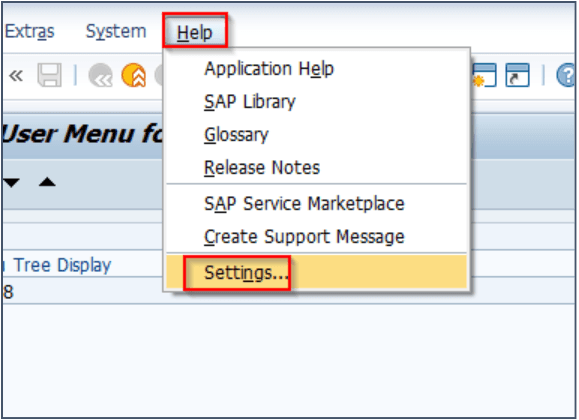
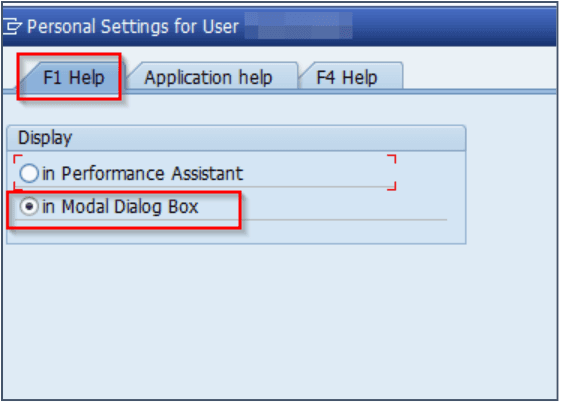
- Under the “F1 Help” tab, select "In Modal Dialog Box" and under "F4 Help" tab, select "Dialog (modal)" display option and click on the green check button to apply changes
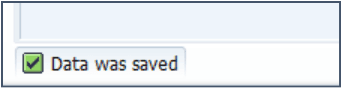
A confirmation message should appear in the status bar as shown below after the settings are applied successfully
Configure SAP GUI High Speed Connection
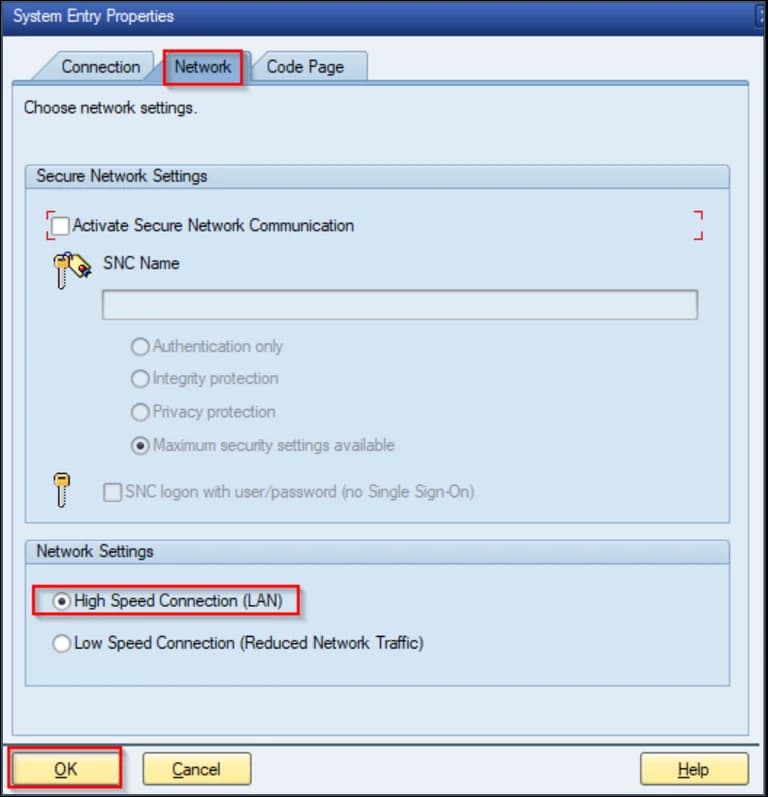
To optimize performance with Certify, configure your SAP GUI logon pad to use a high-speed connection
Follow the steps below to achieve this,
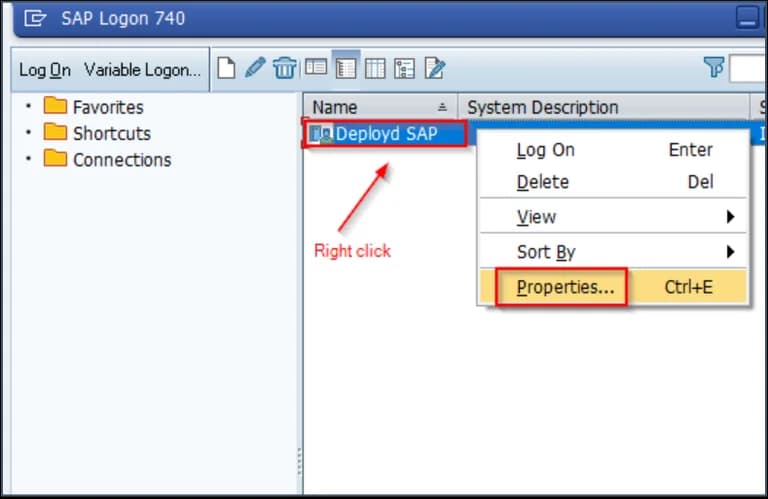
- Right click the SAP system entry in the SAP logon pad and select "Properties"
- Navigate to the "Network" tab, select "High Speed Connection (LAN)" under the "Network Settings" section and click "OK" button
This completes the SAP GUI client prerequisites. Next, proceed with configuring the SAP Application Server.
Section 2 - Configuring Your SAP Application Server
Configuring only your SAP GUI client for script recording and playback is not enough for automation. Your active SAP application server must also be configured to support scripting.
Here are two methods to enable scripting on the SAP application server for automation.
Authorization Requirement: You must have the necessary authorization to perform these changes in RZ10/RZ11. If you lack the required permissions, consult your SAP security team. It is advisable to let the SAP security team handle these steps.
Enable Server-Side Scripting with RZ11 Transaction (Temporary Change, Active Until Restart)
To enable scripting, you must update the following parameters in the RZ11 transaction. Follow these steps to make the necessary modifications.
- sapgui/user_scripting --> TRUE
- sapgui/user_scripting_disable_recording --> FALSE
- sapgui/user_scripting_force_notification --> FALSE
- sapgui/user_scripting_set_readonly --> FALSE
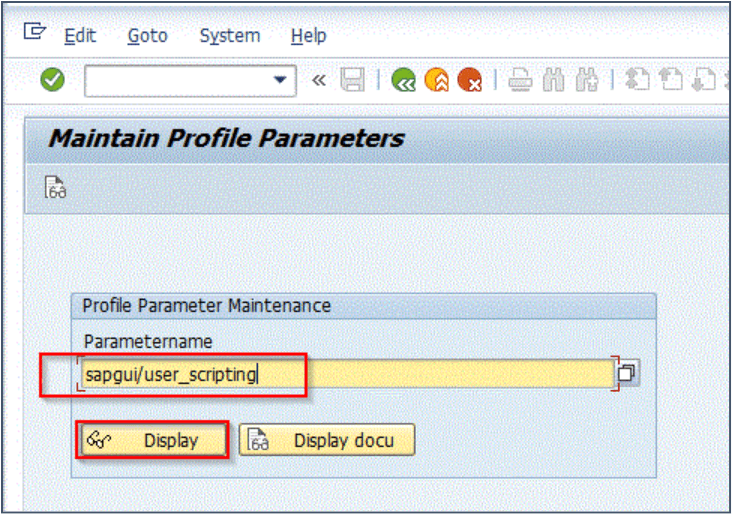
- From the SAP GUI interface, navigate to the TCode "RZ11" and input the parameter "sapgui/user_scripting" and click on "Display"
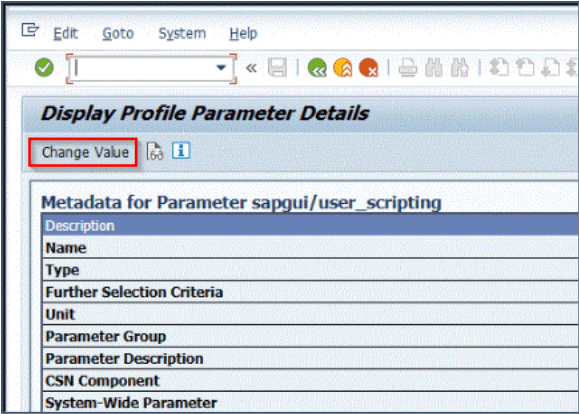
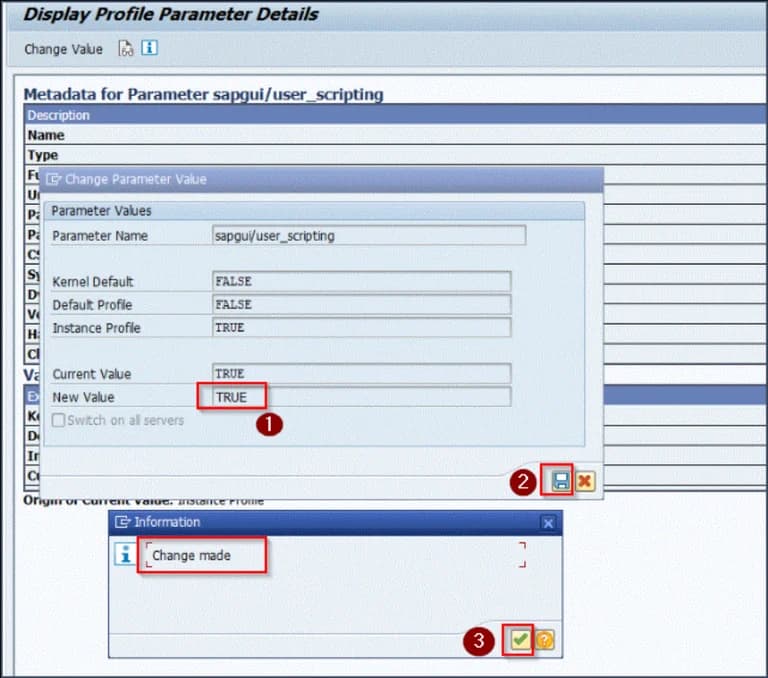
- Select "Change Value" button to change the value from "FALSE" to "TRUE". You can ignore this step if the current value is already "TRUE". You should get a confirmation popup once the change is made.
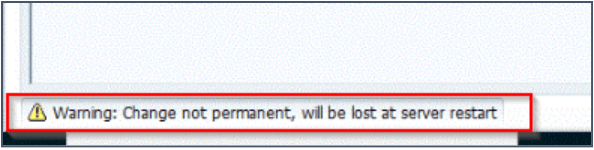
You will see a warning message in the status bar indicating that the change will be lost after a server restart, as shown below.
Any modifications made in the RZ11 transaction are temporary and will only remain effective until the server is restarted.
Repeat the above steps for the remaining parameters below:
- sapgui/user_scripting_disable_recording --> FALSE
- sapgui/user_scripting_force_notification --> FALSE
- sapgui/user_scripting_set_readonly --> FALSE
Enable Server-Side Scripting with RZ10 Transaction (Permanent Change, Retained After Restart)
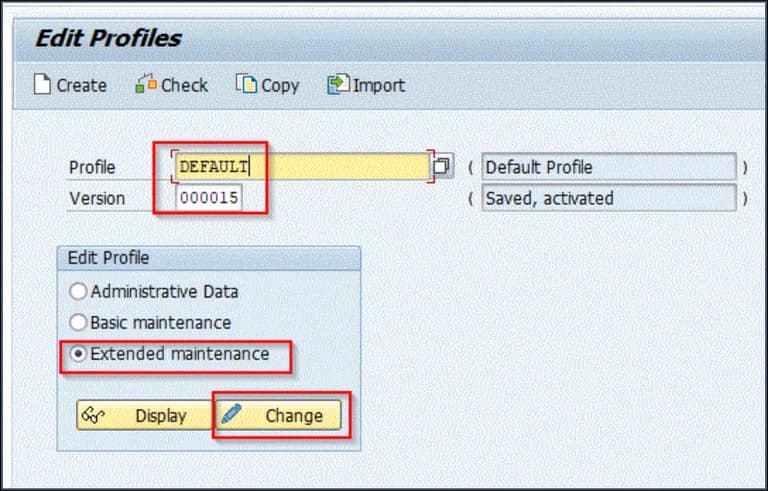
- From the SAP GUI interface, navigate to the TCode “RZ10” and input the Profile, Version and select “Extended maintenance” before clicking on “Change”
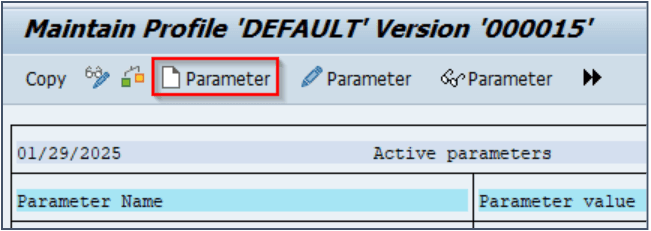
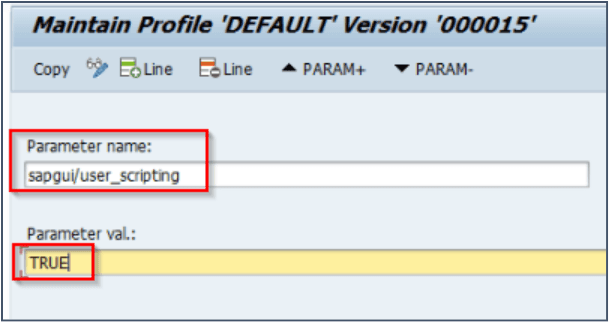
- Look for the parameter "sapgui/user_scripting" and edit it if available, else create a new parameter and set the value to "TRUE"
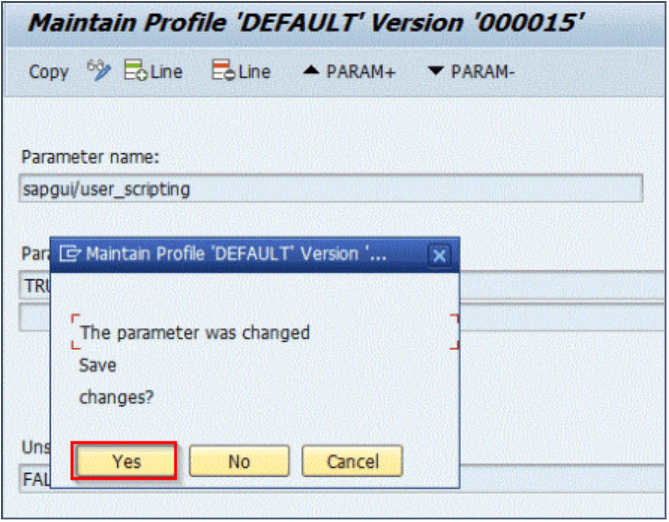
Select “Yes” to save changes and the instance needs to be restarted to see the updated value and you are all set to seamlessly automate SAP GUI with Worksoft Certify.
Conclusion
To conclude, these are the essential prerequisites for automating Worksoft Certify with SAP GUI. Any automation tool that utilizes the SAP Scripting interface will require these settings as part of its setup. If automation issues persist after completing these configurations, please reach out to Worksoft Support for further assistance.